![[frgo.jpg]](../res/frgo.jpg)
Calculator Dictionary
October 22, 2026, 11:12 pm | admin
Click an image to scale it up
Calculator Dictionary
Hello.
It's been a while since I've done much with the site, so I thought I'd start off with a good blog post.
As a Junior in High School, you have to take a lot of standardized tests. Last week, I took the ACT, and just today I took the PSAT at school.
One thing I noticed when reading all those rules was that they explicitly state that a calculator is permitted only in the math section of the exam.
I added a thing so you can click on an image in a blog post to make it big! Try it!
 The ACT Calculator Policy
This got me thinking: why wouldn't calculators be allowed on the reading section? My first thought was that you might be able to store a dictionary on the calculator, thus cheating on the vocabulary questions. My second thought, naturally, was about how I could do this (the dictionary part, not the cheating part).
"Making" the Dictionary
Obviously, if you want to make a dictionary, the first thing you need to do is take someone else's dictionary. But then you have to read it with code, somehow. EPUB files are nice because they are just zipped up html files, making them easy to parse. Instead of writing a script myself to parse these, however, I asked Claude to make the script for me.
I haven't been very into doing stuff with AI, and honestly, I'm not sure how I feel about it. The way I'm looking at it now is that AI is just a way to boost my productivity. I could have written a script to parse the dictionary myself, it just might have been a little different. It would have taken a lot longer, too. This is the first real thing I've ever done using AI, so it's interesting to think about. For now, I'm sticking to the ethos that things posted on the site (games, apps, backend, etc.) should be human-written in entirety or near-entirety.
So, anyways, I parsed this dictionary ebook with this script, and it produced a jsonl file with all the words, definitions, etc. from the dictionary. I had actually done this last week as an unrelated project (not thinking about the calculator), and just decided to put it onto the calculator after taking PSAT today.
 Part of the entry for Frog in the output dictionary file
Putting it on the Calculator
The next part of my scheme was to put the dictionary on the calculator. I have a TI Nspire CX-II CAS, which, ironically, isn't even allowed on these exams (the CAS part). Like its non-CAS counterpart (which is allowed on the exams), it can run Python and has a lot of storage.
Getting ready to put them on the calculator
The micropython packaged in the Nspire has severe restrictions in that it can't open files and the calculator itself has pretty low memory for a modern device. Thus, I decided to split the dictionary into many small files.
In hindsight, I could have probably made much larger files and had fewer of them. Instead, I split the dictionary into about 560 files, each around 16 kB. These files were just python scripts that loaded large sections of the JSON as a string.
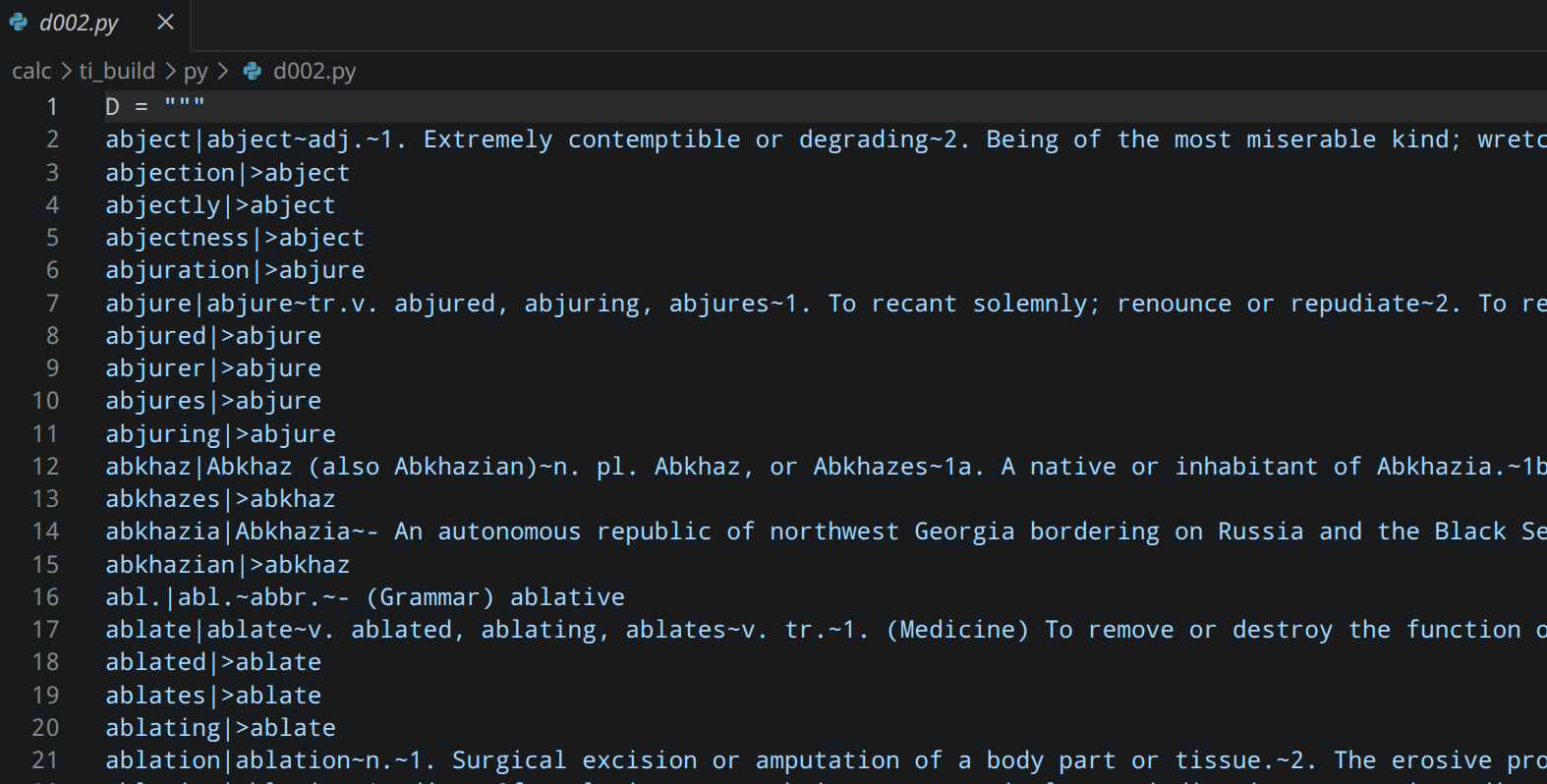 Here's d002, the third of the dictionary chunks.
These files are then loaded onto the calculator and treated as python modules which can be imported. The AI then modified a program I'd already had to search for a dictionary entry to function on the Nspire with this dynamic import system.
Lastly, all of these had to be converted to tns files, Texas Instruments' proprietary Nspire document format. I did this using the Luna tool.
You can check out the files here
Actually putting them on the calculator
I used the TI Nspire CX Student Software to put the files on the device. Unfortunately, this software is only supported on Windows and Mac. Even more unfortunate, it requires a license to use. Luckily, my calculator came with a license code in the box.
Once I got that software activated, I easily loaded all the 500 or so files onto the calculator. Because the dictionary is a bunch of python modules, it needs to go in the PyLib folder.
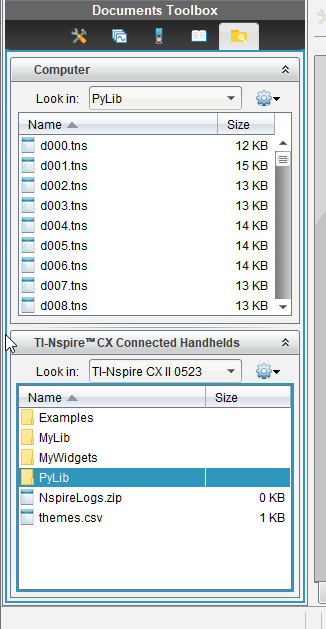 Nspire Student Software
Once these files are loaded into the PyLib folder, and the actual script (lookup_word) is wherever you want it to be, refresh the libraries by pressing [menu], [refresh libraries (b)] from the Browse menu of the calculator.
Now you're done. Just run the script, type the stuff in, and you have a dictionary on your calculator. There are constants at the top defining characters per line and lines per page to be shown (that the AI wrote, I would never write code so neat) that you can change if you want to.
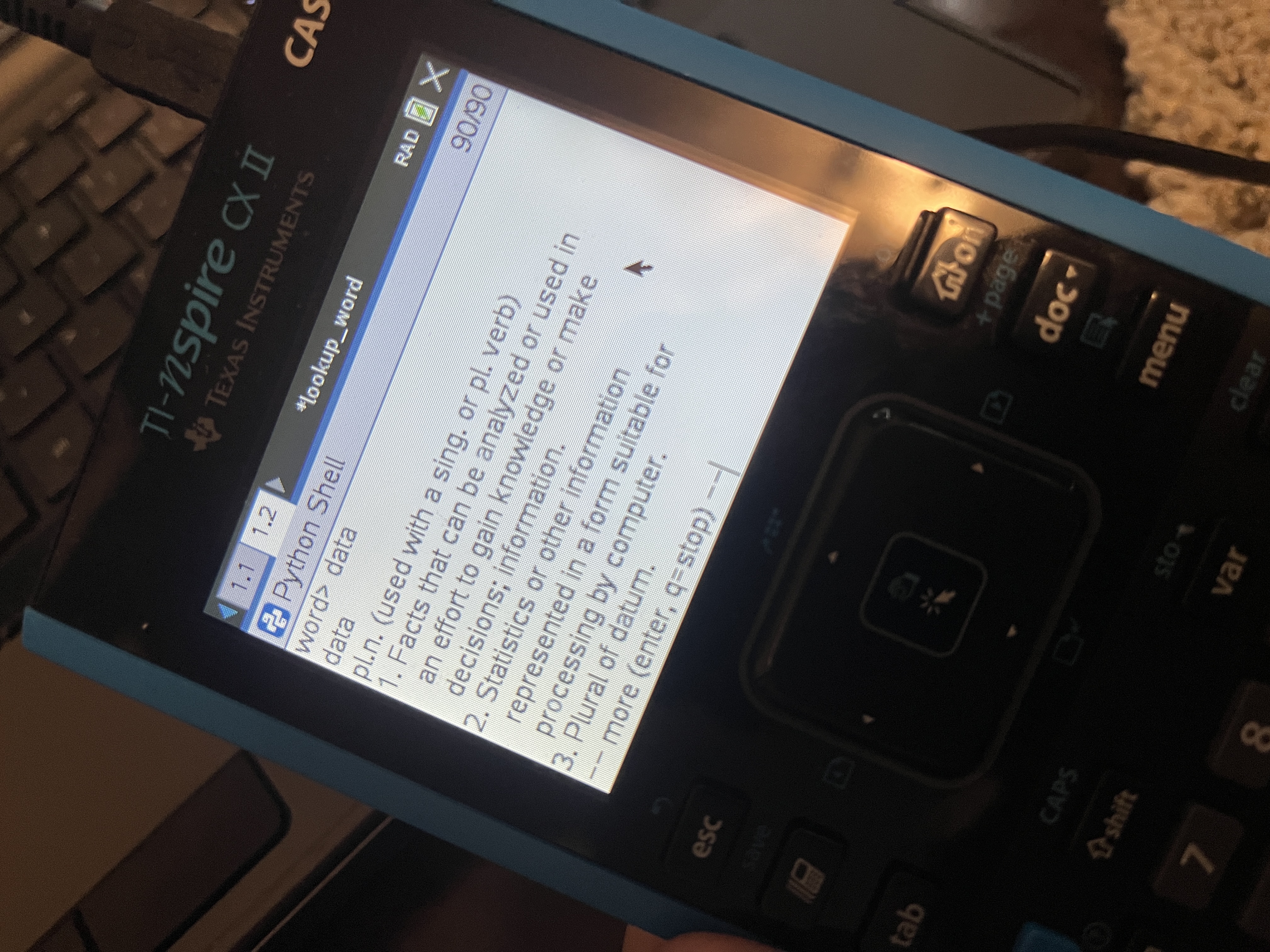 Definition of Data